

A visitor arrives as the reception desk gets busy. One staff member knows the new system; another is unsure what to do next. That’s why how to train staff on a new VMS matters. This guide focuses on visitor management systems, not video or vendor management software, which involve different workflows.
It’s easy to assume one walkthrough will get everyone up to speed. But staff have different levels of digital confidence, and reception, security, and administrative roles may use the system in different ways. Without clear practice and responsibilities, check-in can slow down, records may be incomplete, and handoffs can become inconsistent.
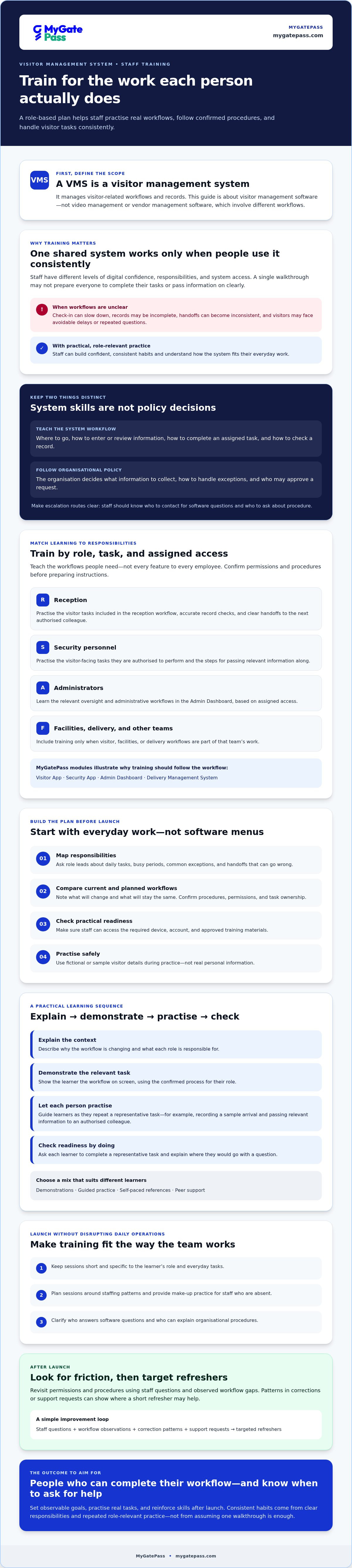
A role-based plan makes the transition more manageable. Map training to everyday tasks, give each role a chance to practise, and check for gaps after launch. The steps below show how to reinforce learning without disrupting daily operations, so staff can build confident, consistent habits with the new system.
Key Takeaways
- Learn how to train staff on a new VMS by matching practice to each role’s everyday tasks and access needs.
- Choose a mix of demonstrations, guided practice, self-paced references, and peer support to suit different learners.
- Prepare for launch by fitting training around staffing patterns and clarifying who answers system and procedure questions.
- Use follow-up reviews and patterns in corrections or support requests to spot friction and target refreshers.
- Build a repeatable training plan that helps staff handle their workflows with confidence and consistency.
Why staff training matters when introducing a new VMS
A visitor management system (VMS) is software for managing visitor-related workflows and records. It can bring information into a shared digital process, but only if each person uses it consistently. If one team member records an arrival differently or leaves a handoff unclear, colleagues may need to chase details, records can become incomplete, and visitors may face avoidable delays or repeated questions.
Training helps turn the software into a dependable everyday routine. It should cover both how to complete tasks in the system and which procedures the organisation has agreed to follow. The distinction matters: staff can learn where and how to enter information, while decisions about what information to collect, how to handle exceptions, and who may approve a request must come from organisational policy. The Technology Acceptance Model describes how perceived usefulness and ease of use influence technology adoption. Practical, role-relevant training can help staff see how the VMS fits their work and feel more comfortable using it.
So, how to train staff on a new VMS? Set observable goals, practise real workflows, and reinforce skills after launch. A demonstration can introduce the interface, but it won’t show whether each person can complete their tasks independently or recognise when they need help.
What should staff be able to do after VMS training?
Replace vague goals like “understand the system” with tasks people can demonstrate. Depending on their role and the confirmed workflow, staff should practise finding the right screen, completing an assigned visitor task, checking that the required record is accurate, and passing relevant information to the next person. They should also know what to do when information is missing or a situation falls outside the usual process.
Keep system navigation separate from policy judgement. A user can learn how to enter or review information without being authorised to decide what should be collected or approve an exception. Make the escalation route clear by naming who to contact and distinguishing software questions from questions about organisational procedure.
Which staff groups need different training?
Match practice to actual responsibilities and permissions, rather than giving everyone the same walkthrough. Security personnel can practise the visitor-facing tasks they’re authorised to perform. Administrators can learn the relevant oversight and administrative workflows in the Admin Dashboard, based on their assigned access. Reception, facilities, or delivery staff need training only if visitor, facilities, or delivery workflows are part of their work.
For example, MyGatePass includes a Visitor App, a Security App, an Admin Dashboard, and a Delivery Management System. These modules show why training should follow each team’s workflow instead of assuming every employee uses every part of the software. Confirm current permissions and procedures before preparing task instructions. After launch, revisit them using staff questions and observed workflow gaps to target short refreshers.
How to build a role-based VMS training plan
A role-based VMS training plan matches practice to the tasks, access, and decisions assigned to each staff group. Instead of teaching every feature to everyone, identify what each person needs to do and practise those workflows before the system goes live. This makes training more relevant, as role-based learning builds learning paths accordingly.
How do you assess training needs before the VMS goes live?
Start with the work, not the software menus. Ask role leads to describe daily tasks, busy periods, common exceptions, and where handoffs can go wrong. Compare current procedures with the planned system workflow, noting what will change and what will stay the same. Then check practical readiness: can staff access the required device, account, and approved training materials? Confirm user permissions and workflows before writing step-by-step instructions.
Use fictional or sample visitor details during practice, not real personal information. Staff can rehearse realistic situations without exposing actual visitor records.
How should you sequence training sessions?
Move from context to action. Explain why the workflow is changing and what each role is responsible for, then demonstrate the relevant task on screen. Next, let each learner repeat it with guidance. For example, a staff member might practise recording a sample arrival and passing relevant information to the next authorised colleague, following only the organisation’s confirmed process.
Keep sessions short and role-specific so people can focus on the tasks they’ll actually perform. Plan make-up practice for absent staff, and include a readiness check: ask each learner to complete a representative task and explain where they’d go with a question.
What materials make VMS training easier to repeat?
Build a small set of reliable references that can be updated as workflows change:
- Role checklists: List the steps each group is authorised to complete, based on verified current workflows.
- Screen references: Use screenshots or short demonstrations only when they match the live system and current access.
- Help routes: State who handles account or system questions, who clarifies procedures, and where staff can find updates.
For the rollout, structure the plan as a sequence from discovery through practice and readiness:
- 1. Map: Document current processes, pain points, user groups, and required access.
- 2. Adapt: Set task-based learning goals for each role.
- 3. Prepare: Verify instructions, sample scenarios, devices, and accounts.
- 4. Practise: Demonstrate, guide, then observe each person completing their tasks.
- 5. Check: Record gaps and arrange follow-up practice where needed.
For example, teams reviewing a visitor and security workflow can explore the MyGatePass software modules as a reference point, then confirm the roles and steps that apply to their own setup.
How to compare training methods and check staff readiness
No single format suits every VMS workflow. A brief demonstration can introduce the system, but staff also need time to practise their tasks and a reliable reference for later. To decide how to train staff on a new VMS, consider workflow complexity, staff availability, and each group’s digital confidence. For example, a security team learning visitor-facing tasks may benefit from guided practice, while administrators may need focused time to work through their assigned dashboard responsibilities.
Which training format works best for security and administrative teams?
Use demonstrations to establish shared context, then move into hands-on practice. Reference guides support repeatable steps, and peer support can help with follow-up questions. Peer advice shouldn’t replace verified instruction, especially when a question involves permissions or an agreed procedure.
| Training method | Best use | Strengths | Limitations | Suitable groups |
|---|---|---|---|---|
| Instructor-led demonstration | Introducing the workflow and showing key screens | Creates a shared starting point; learners can ask questions | Watching alone doesn’t confirm someone can complete the task | Security, reception, administrators, or other users learning common concepts |
| Guided practice | Rehearsing role-specific tasks with coaching | Reveals where learners hesitate or need clarification | Needs practice time and someone familiar with the approved workflow | Staff responsible for operational or administrative tasks |
| Self-paced references | Revisiting routine steps after training | Available for quick refreshers and consistent reminders | Can become confusing if instructions don’t match the live system | Any group with repeatable tasks |
| Peer support | Answering follow-up questions and sharing practical tips | Makes it easier to ask for help during everyday work | Advice may vary unless instructions and escalation routes are clear | Teams with an identified, appropriately informed peer contact |
How can managers confirm staff are ready to use the VMS?
Check demonstrated ability, not attendance or self-reported confidence alone. Give each learner a realistic, role-appropriate task using sample information, then observe them completing it independently. Assess everyone against the same checklist, tailored to their authorised workflow.
- Successful steps: The learner completes each required action in the agreed sequence.
- Coaching needs: Note hesitation, skipped steps, or repeated prompts without treating a question as failure.
- Escalation: Confirm the learner knows where to take a system question or a procedure question.
Blend methods to close specific gaps. A learner who can explain a task but struggles to perform it needs more guided practice. Someone who completes it successfully but later forgets a step may benefit from a concise reference. Readiness is a practical checkpoint, not a one-time verdict. Revisit it when workflows change or follow-up reveals recurring difficulty.
How to launch the VMS without overwhelming daily operations
Plan a smooth launch around the work already happening at the entrance, not an arbitrary rollout deadline. Review staffing patterns, visitor activity, and other operational demands, then choose an approach that gives each role time to practise without leaving busy periods unsupported. The aim of learning how to train staff on a new VMS is not simply to switch systems, but to help teams maintain a clear, consistent visitor process as they adapt.
Give the rollout a clear point of coordination. Name a training lead who can track questions and readiness, and distinguish between software questions, which go to the designated system contact, and procedure questions, which go to the appropriate organisational lead. Prepare a fallback communication route for account or access problems, so staff know whom to notify and how to follow the organisation’s approved process while an issue is resolved.
What should managers prepare before launch day?
Before go-live, coordinate with the responsible system administrators to confirm that staff can access the correct accounts, devices, and role permissions. Check that training references match the current system and that affected teams know the launch plan, escalation contacts, and expectations. A short rehearsal can reveal gaps before they affect live visitor workflows.
Practise routine and exception scenarios using approved test information. For example, rehearse a standard visitor workflow and a case where a staff member cannot access the system. If the process includes a verified identity workflow, confirm its current steps before teaching it. The UAE Pass integration guide can provide relevant context, but staff instructions should reflect the organisation’s verified setup rather than assumptions.
How can managers support staff during the first days?
Arrange for a trained point of contact to be available during the periods your organisation expects the most activity. That person can help staff find the right escalation route without making unverified decisions on their behalf. Keep visitor handling consistent by following approved procedures while authorised colleagues resolve workflow or access gaps.
- Capture recurring questions: Note whether they relate to system access, navigation, or unclear procedures.
- Route issues correctly: Send account and software problems to the system contact, and process questions to the responsible procedure lead.
- Share confirmed updates: Refresh guidance when a workflow is clarified, so teams aren’t relying on conflicting answers.
Use what you learn during launch to focus follow-up practice on genuine friction points. If you’re reviewing software for visitor and facility workflows, explore MyGatePass software as one option to consider.
Reinforcing VMS Skills in Everyday Workflows
Training shouldn’t stop once staff can complete a practice task. Set a follow-up review after launch to find repeated questions, workflow friction, and topics that need a refresher. Look at appropriate aggregate patterns, such as task completion, corrections, or support requests, to spot where guidance may need improvement. These indicators can point to a training gap, but they shouldn’t be used to make assumptions about an individual employee without context.
Handle information carefully throughout the review. Use only the details needed to assess the workflow, limit access to records according to your organisation’s procedures, and avoid copying personal visitor information into training notes. Follow approved data-handling processes when collecting, reviewing, or sharing feedback.
How do you keep training current after the initial rollout?
Keep learning materials aligned with the system staff actually use. When verified workflows, permissions, or screens change, update the relevant guide and note what changed and when. A simple change log helps teams distinguish current instructions from older versions. Offer focused refreshers when staff join, recurring mistakes appear, or a process update affects their tasks. Short, timely practice can be more useful than repeating a full introduction.
Review feedback with the people who own the relevant workflow. If staff repeatedly ask the same question, check whether the guide is unclear, the process needs clarification, or additional practice would help. Make the smallest useful update, then tell affected teams where to find it.
How can MyGatePass fit into a staff training plan?
Use the modules relevant to your organisation as examples of distinct workflows. The MyGatePass Security App and Admin Dashboard serve different staff-facing and administrative purposes, so training should reflect each user’s confirmed responsibilities and access. The Visitor App may be relevant to visitor workflows; delivery management and staff attendance modules should be included only for teams that use those processes.
For broader context on visitor workflows, see this digital gate pass app guide. Use it to inform your planning, then verify current screens, permissions, and procedures before preparing staff instructions.
A practical way to approach how to train staff on a new VMS is to treat reinforcement as part of the workflow: review patterns, clarify the source of friction, update the right material, and check whether the change helps. If you’re assessing whether the available modules suit your organisation’s needs, explore MyGatePass and consider how its workflows align with your teams.
Make confident VMS use part of everyday work
A successful rollout depends on more than introducing new software. Staff need practice that matches their roles, a clear way to raise questions, and follow-up when workflows change. That’s the practical answer to how to train staff on a new VMS: teach observable tasks, check readiness through hands-on practice, and reinforce learning with current guidance.
Keep the plan grounded in your organisation’s real responsibilities and approved procedures. Review recurring questions and workflow friction after launch, then focus refreshers where they’ll help most. Small, targeted adjustments can keep teams aligned without making training a one-time event.
MyGatePass includes dedicated Visitor and Security Apps, a centralized Admin Dashboard, a UAE Pass integration module, and delivery management and staff attendance tracking modules. Explore how these options may fit your organisation’s workflows, then assess the roles and processes your team needs to support.
Explore MyGatePass and its software suite. With clear guidance and regular practice, your staff can build confidence one workflow at a time.
Frequently Asked Questions
How long does it take to train staff on a new VMS?
Training time depends on the number and complexity of workflows, staff roles, digital confidence, and time available for practice. A team with a few straightforward tasks may need less instruction than one with different permissions and exception processes. Rather than set a fixed duration, plan time for demonstration, guided practice, a readiness check, and follow-up. Staff are ready for their assigned work when they can complete the relevant tasks independently and know where to get help.
What should VMS staff training include?
VMS training should cover the system tasks staff are authorised to perform and the organisation’s agreed procedures for routine situations and exceptions. Include navigation, accurate record completion, handoffs, escalation routes, and practice with realistic scenarios. Make clear which decisions belong to organisational policy rather than software navigation. Provide role-specific checklists or references, then reinforce learning after launch by reviewing questions, corrections, and workflow friction.
How do you train security staff to use a visitor management system?
Start with the visitor-facing tasks security staff are authorised to perform, based on confirmed roles and permissions. Demonstrate the relevant workflow, then have each person practise it using approved test information. Include what to do if a step cannot be completed, information is missing, or a question falls outside their responsibility. Check readiness by observing staff complete the assigned task and explain how they would escalate a system or procedure question.
Should VMS training be different for administrators and front-line staff?
Yes. Front-line staff need practice with the visitor or operational tasks they handle during everyday work, while administrators need guidance for their assigned oversight and dashboard responsibilities. Avoid teaching every user every function. For example, MyGatePass includes a Security App and an Admin Dashboard, but training should reflect confirmed permissions and workflows rather than assume every staff member uses both. Shared sessions can introduce common procedures, followed by role-specific practice.
How can managers reduce staff resistance to a new VMS?
Explain what is changing, why the organisation is introducing the system, and how the new workflow affects each role. Give staff time to try relevant tasks, raise concerns, and practise with guidance before relying on the system in daily work. Keep instructions clear and accessible, and respond to recurring questions by improving training or clarifying procedures. Involving role leads in preparation can help make the rollout feel connected to real work, rather than imposed without context.
How can you tell whether VMS training has been successful?
Use demonstrated performance, not attendance or confidence alone. Ask each learner to complete a realistic task for their role independently, then assess it with a consistent checklist covering required steps, accurate records, and appropriate escalation. Note where coaching is needed and offer more practice before treating the learner as ready. After launch, review aggregate patterns such as completion, corrections, and support requests to identify workflows that may need clearer guidance or a refresher.
Can staff practise with visitor information during VMS training?
Use fictional or approved test information rather than real personal visitor details during practice. Staff can rehearse realistic workflows without exposing actual records in training notes, demonstrations, or shared materials. If a process requires work with live information, follow the organisation’s approved data-handling procedures and limit access to what is necessary. Check that practice accounts, sample records, screenshots, and reference materials are suitable for training before sharing them with staff.


